English
 English


Details description |
|---|
|
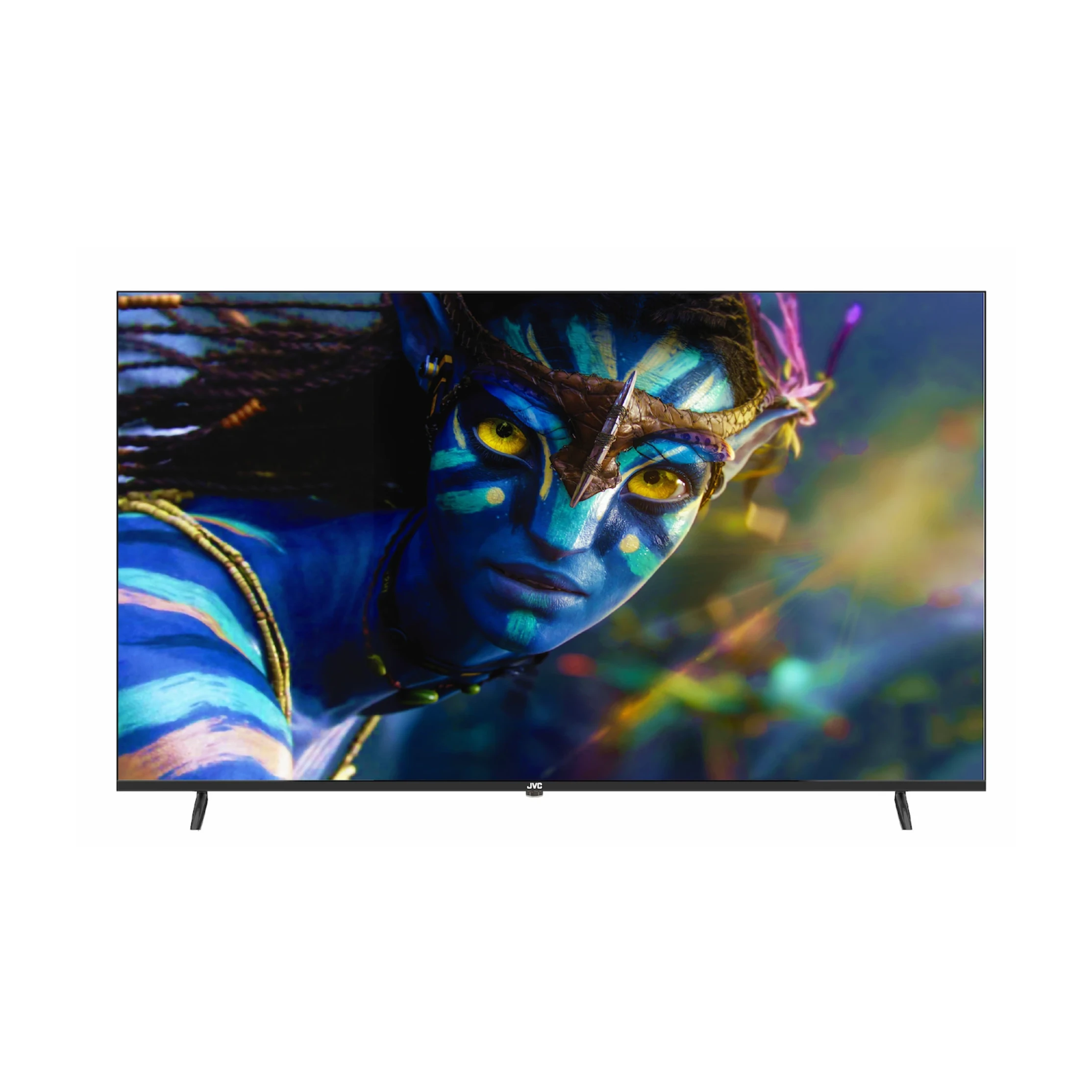
Resolution: 3840 x 2160 HDMI x 3 USB x 2 65" QLED Smart TV WiFi Module built-in Ultra-thin Bezels Digital audio output 1 Year Warranty JVC 65-inch QLED Smart TV-LT65NQ7115The JVC 65-inch QLED Smart TV (LT65NQ7115) combines stunning visuals and smart technology for an immersive entertainment experience. Featuring a 4K UHD resolution of 3840 x 2160, it delivers crystal-clear picture quality with vibrant colors and sharp details. The ultra-thin bezels maximize screen space, enhancing the modern design. Equipped with built-in WiFi, it supports seamless streaming and smart functionalities. Connectivity options include three HDMI ports and two USB ports for versatile device integration. With digital audio output, it ensures superior sound quality to complement the visuals. This QLED TV is a perfect centerpiece for any home entertainment system. Important Notice : Unsupported Applications The following apps are not supported: · DSTV NOW (This is a mobile-only app) · SHOWMAX These are third-party apps that have built-in licenses and controlled protocols. Unlocking Features for Pre-Loaded Android Apps To unlock full Android access and use the apps on your TV, follow these steps: 1. Sign in to your existing Gmail account or create a new one on the TV to access the Android Play Store. 2. Once you have access, you can browse and load apps on your TV. 3. When trying to access YouTube or Netflix, you may be automatically prompted to update Google Play Service. 4. If you are not prompted, you can search for the update in the Play Store app or via the internet browser. 5. Updating Google Play Service will unlock full Android access. 6. After this process, you will be able to access all apps with ease. Please Note · The TV is tested and approved with the apps that are pre-loaded at the time of sale. · Any third-party apps loaded after purchase are not guaranteed to work, as there are constant updates to licensing regulations and protocols. · To avoid Netflix from updating to the latest version, you should first set up your Google account on the TV, then go to the Play Store and turn off Auto Updates. You can manually update Google Play Services if and when prompted. |